Wiring Microsoft Exchange to a Joule procurement agent over MCP
Everything needed to take this integration from an empty subaccount to a validated, live tool call — the accounts and tooling, the Microsoft-side identity plumbing, the MCP server on Cloud Foundry, the BTP destination, and the Joule Studio wiring. Steps are numbered in setup order, which runs opposite to the runtime call order shown above.
Overview & architecture
The agent never talks to Microsoft directly. A custom MCP server sits in the middle: Joule issues a tool call, the server translates it into a Microsoft Graph request against a single scoped mailbox, and hands the result back. Three stages, two directions — invocation flows left-to-right, data flows back right-to-left.
graph-mail destination (an Entra app identity).The companion architecture page covers the same three stages visually — the runtime call flow, the component architecture, and the procurement data model — and is worth keeping open alongside this runbook.
Prerequisites
Access & accounts
us10 region with Cloud Foundry enabled, an entitlement for SAP Build Process Automation / Joule Studio, and a HANA Cloud / HDI container for the CAP backend if present.Roles:
Subaccount Administrator (entitlements, service instances) or at minimum Destination Administrator role collection (for Stage 04), plus the ProcessAutomationAdmin and ProcessAutomationDeveloper role collections for Joule Studio work.Fairconsult Corp.-demo, space procurement-demo.Roles:
SpaceDeveloper in the target space (push, bind, restage) and OrgUser in the org; OrgManager / SpaceManager only if you also need to create the space or assign roles to others.Roles:
Application Administrator (or Cloud Application Administrator) to register the app and create the client secret — but tenant-wide admin consent to Graph application permissions (Mail.Read, Mail.Send) requires Global Administrator or Privileged Role Administrator.Roles:
Exchange Administrator (covers New-ApplicationAccessPolicy, Test-ApplicationAccessPolicy, and creating the security group); Recipient Administrator alone can create the group/mailbox but not the access policy.id_ed25519 vs. work id_github_work / github-work host alias).Roles:
Write on the repo to push branches; Maintain or Admin only if you manage branch protection or repo settings.Local tooling
Same toolchain on both platforms — Node (via nvm), the Cloud Foundry CLI with the MultiApps plugin, the MTA build tool, and the Microsoft-side config tooling (Azure CLI + PowerShell with the Exchange Online module). Pick the block for your OS.
macOS (Apple Silicon)
# Homebrew, if you don't have it
/bin/bash -c "$(curl -fsSL https://raw.githubusercontent.com/Homebrew/install/HEAD/install.sh)"

# Node via nvm (LTS)
curl -o- https://raw.githubusercontent.com/nvm-sh/nvm/v0.39.7/install.sh | bash
nvm install --lts && nvm use --lts

# Cloud Foundry CLI v8 + MultiApps (MTA) plugin + MTA build tool
brew install cloudfoundry/tap/cf-cli@8
cf install-plugin multiapps
npm install -g mbt

# Microsoft-side config tooling
brew install azure-cli
brew install --cask powershell
pwsh -c "Install-Module ExchangeOnlineManagement -Scope CurrentUser -Force"
multiapps from the plugin repo can fetch the x86_64 build on arm64 Macs, and cf deploy then fails with a bad-binary error. The fix is to download the osxarm64 binary from the plugin's GitHub releases and install it manually:# Remove the broken x86_64 install cf uninstall-plugin multiapps # Download the arm64 build from GitHub and install it manually curl -LO https://github.com/cloudfoundry/multiapps-cli-plugin/releases/latest/download/multiapps-plugin.osxarm64 chmod +x multiapps-plugin.osxarm64 cf install-plugin ./multiapps-plugin.osxarm64 -f # Verify cf plugins | grep -i multiapps
Linux alternative (Debian / Ubuntu)
# Node via nvm (LTS)
curl -o- https://raw.githubusercontent.com/nvm-sh/nvm/v0.39.7/install.sh | bash
nvm install --lts && nvm use --lts

# Cloud Foundry CLI v8 (official apt repo) + MultiApps plugin + MTA build tool
wget -q -O - https://packages.cloudfoundry.org/debian/cli.cloudfoundry.org.key | sudo gpg --dearmor -o /usr/share/keyrings/cf-cli.gpg
echo "deb [signed-by=/usr/share/keyrings/cf-cli.gpg] https://packages.cloudfoundry.org/debian stable main" | sudo tee /etc/apt/sources.list.d/cloudfoundry-cli.list
sudo apt update && sudo apt install -y cf8-cli
cf install-plugin multiapps
npm install -g mbt

# Microsoft-side config tooling
curl -sL https://aka.ms/InstallAzureCLIDeb | sudo bash

# PowerShell (Microsoft apt repo — adjust the Ubuntu version to match `lsb_release -rs`)
wget -q "https://packages.microsoft.com/config/ubuntu/$(lsb_release -rs)/packages-microsoft-prod.deb"
sudo dpkg -i packages-microsoft-prod.deb && rm packages-microsoft-prod.deb
sudo apt update && sudo apt install -y powershell
pwsh -c "Install-Module ExchangeOnlineManagement -Scope CurrentUser -Force"
Microsoft / Entra setup
This stage produces the three values the integration authenticates with — tenant ID, client ID, client secret — which land in the graph-mail destination in Stage 04, and locks the app down to a single mailbox. Do it first: nothing downstream works without these values.
Application AdministratororCloud Application Administrator(Entra) — register the app, create the client secret.Global AdministratororPrivileged Role Administrator(Entra) — grant tenant-wide admin consent to Graph application permissions; App Admin alone cannot do this step.Exchange Administrator(M365) — create the shared demo mailbox, the security group, and the application access policy in step 2.User Administrator(M365) — only if the demo mailbox is a licensed user account rather than a shared mailbox.
1 · Register the app & grant Graph permissions
- In the Entra admin center → App registrations → New registration. Single tenant is fine for a demo.
- On the new app's Overview page, copy the Application (client) ID and the Directory (tenant) ID — these are the
CLIENT_IDandTENANT_IDused in the access policy below and in thegraph-maildestination (Stage 04). - Under API permissions, add Microsoft Graph → Application permissions →
Mail.ReadandMail.Send. - Click Grant admin consent — the status column must read Granted for both.
- Under Certificates & secrets, create a client secret and copy the value immediately (it's shown once).
403 on mailbox reads.2 · Scope the app to one mailbox (Exchange Online)
By default a Graph app with Mail.Read can read every mailbox in the tenant. An application access policy restricts it to the demo mailbox only.
If the demo mailbox doesn't exist yet, create it first: Exchange admin center → Recipients → Mailboxes → Add a shared mailbox (no license needed, covered by Exchange Administrator), or a licensed user in the Microsoft 365 admin center (needs User Administrator + a mailbox license). Its primary address — here procurement-agent@FairConsultCorp.onmicrosoft.com — is the <MAILBOX_UPN> below and the MAILBOX value in manifest.yml (Stage 03).
Everything below runs in PowerShell, not bash. PowerShell itself was installed in Stage 01 (brew install --cask powershell on macOS, apt install powershell on Linux) — drop into a session from your terminal first:
# Launch a PowerShell session — your prompt changes to `PS >`
pwsh

# First time only: install and load the Exchange Online module
Install-Module ExchangeOnlineManagement -Scope CurrentUser -Force
Import-Module ExchangeOnlineManagement

# Sanity check — should print the module with its version
Get-Module ExchangeOnlineManagement

# (When you're done later, `exit` drops you back to bash)
With the module loaded, connect and create the policy:
Connect-ExchangeOnline

# A security group holding the mailbox(es) the app may touch
New-DistributionGroup -Name "MCP-Scoped-Mailboxes" -Type Security
Add-DistributionGroupMember -Identity "MCP-Scoped-Mailboxes" -Member <MAILBOX_UPN>

# Restrict the app to that group only
New-ApplicationAccessPolicy `
  -AppId <CLIENT_ID> `
  -PolicyScopeGroupId "MCP-Scoped-Mailboxes" `
  -AccessRight RestrictAccess `
  -Description "Restrict procurement-mailer-mcp to the demo mailbox"

# Confirm: Accessible = should be True for the scoped mailbox, denied elsewhere
Test-ApplicationAccessPolicy -Identity <MAILBOX_UPN> -AppId <CLIENT_ID>
403 right after creation usually just needs time — re-run Test-ApplicationAccessPolicy before assuming it's misconfigured.MCP server build & deploy
Runtime & dependencies
22.x + TypeScript — tsx watch for dev, tsc → dist/; npm start runs node dist/index.js@modelcontextprotocol/sdk — McpServer + StreamableHTTPServerTransport in stateless mode@sap-cloud-sdk/connectivity + @sap-cloud-sdk/http-client — every Graph call resolves the graph-mail destinationzod — input validation on every toolsrc/index.ts express + transport · src/server.ts tool registry + ping · src/tools/mail.ts the three mail tools · src/graph/client.ts Graph accessping · list_messages · read_message · send_mailConfiguration
The Entra credentials from Stage 02 are not environment variables. The server reaches Graph through the graph-mail BTP destination (Stage 04), resolved at runtime via the bound destination service. The app's own config is just the mailbox — PORT is injected by Cloud Foundry — and lives in manifest.yml:
applications:
  - name: procurement-mailer-mcp
    memory: 256M
    disk_quota: 512M
    buildpacks:
      - nodejs_buildpack
    command: npm start
    services:
      - procurement-mailer-dest
      - procurement-mailer-conn
      - procurement-mailer-uaa
    env:
      MAILBOX: procurement-agent@FairConsultCorp.onmicrosoft.com
Transport shape
The server is stateless: every POST /mcp builds a fresh server + transport pair (sessionIdGenerator: undefined), and GET/DELETE — the session channels of Streamable HTTP — answer 405. Keep the route exactly /mcp; the Joule-side destination is configured without it (see Stage 04).
import express from "express";
import { StreamableHTTPServerTransport } from "@modelcontextprotocol/sdk/server/streamableHttp.js";
import { buildServer } from "./server.js";

const PORT = Number(process.env.PORT ?? 3000);

const app = express();
app.use(express.json());

app.post("/mcp", async (req, res) => {
  const server = buildServer();
  const transport = new StreamableHTTPServerTransport({
    sessionIdGenerator: undefined, // stateless
  });
  res.on("close", () => {
    transport.close();
    server.close();
  });
  await server.connect(transport);
  await transport.handleRequest(req, res, req.body);
});

// Stateless mode: no GET/DELETE session handling.
app.get("/mcp", (_req, res) => res.status(405).send("Method Not Allowed"));
app.delete("/mcp", (_req, res) => res.status(405).send("Method Not Allowed"));

app.listen(PORT, () => {
  console.log(`MCP server on http://localhost:${PORT}/mcp`);
});
Graph access
No MSAL and no token juggling in code — executeHttpRequest resolves the graph-mail destination, handles the OAuth client-credentials exchange, and prefixes /v1.0:
import { executeHttpRequest } from "@sap-cloud-sdk/http-client";

const DESTINATION = { destinationName: "graph-mail" };

// The shared mailbox every call targets. Overridable via env for other demos.
export const MAILBOX =
  process.env.MAILBOX ?? "procurement-agent@FairConsultCorp.onmicrosoft.com";

export async function graphGet(path: string): Promise<any> {
  const res = await executeHttpRequest(DESTINATION, {
    method: "get",
    url: `/v1.0${path}`,
  });
  return res.data;
}

export async function graphPost(path: string, body: unknown): Promise<number> {
  const res = await executeHttpRequest(DESTINATION, {
    method: "post",
    url: `/v1.0${path}`,
    data: body,
  });
  return res.status; // sendMail returns 202 with no body
}
Deploy to Cloud Foundry
SpaceDeveloper(Cloud Foundry, spaceprocurement-demo) —cf push, create/bind service instances, restage.Subaccount Administrator(BTP) — only if thedestination,connectivity, orxsuaaentitlements aren't yet assigned to the subaccount.
# Copy the exact API endpoint from BTP cockpit → Cloud Foundry Environment
cf api <CF_API_ENDPOINT>   # e.g. https://api.cf.us10-001.hana.ondemand.com
cf login --sso
cf target -o "Fairconsult Corp.-demo" -s procurement-demo

# One-time: create the three backing services manifest.yml expects
cf create-service destination lite procurement-mailer-dest
cf create-service connectivity lite procurement-mailer-conn
cf create-service xsuaa application procurement-mailer-uaa

# Build, then push — manifest.yml binds the services and sets MAILBOX
npm run build
cf push

# If you re-bind or change a service later: RESTAGE, never restart
cf restage procurement-mailer-mcp
VCAP_SERVICES. cf restart reuses the old droplet and the env stays empty — only cf restage re-injects the service bindings.BTP destination config
Two destinations live in the BTP subaccount → Connectivity → Destinations: one the MCP server uses to call Microsoft Graph, and one Joule Studio uses to reach the MCP server.
Destination Administratorrole collection (BTP subaccount) — create and edit destinations;Subaccount Administratoralso covers it.
1 · graph-mail — MCP server → Microsoft Graph
This is where the three values from Stage 02 live — src/graph/client.ts resolves this destination by name through the bound destination service, and the SAP Cloud SDK handles the token exchange.
graph-mail — must match destinationName in src/graph/client.ts.https://graph.microsoft.comInternetOAuth2ClientCredentials, with the Client ID and Client Secret from Stage 02.https://login.microsoftonline.com/<TENANT_ID>/oauth2/v2.0/token — TENANT_ID is the Directory (tenant) ID from the app's Overview page (Stage 02, step 2).scope = https://graph.microsoft.com/.default2 · Joule Studio → MCP server
https://procurement-mailer-mcp.cfapps.us10-001.hana.ondemand.com — the app route without a trailing /mcp; Joule appends it. Get the route from cf app procurement-mailer-mcp or the cockpit (Stage 06 shows both).InternetNoAuthentication for a demo, or OAuth if you fronted it).sap-joule-studio-mcp-server = true/mcp, Joule builds /mcp/mcp and every call 404s. Set the URL to the bare route; the two required signals are no trailing /mcp and the sap-joule-studio-mcp-server: true property.ProcessAutomationAdmin role collection) — only then does the server become available in Joule Studio. That registration is Stage 05, step 1.Joule Studio wiring
ProcessAutomationDeveloperrole collection (SBPA) — build and version the capability in Joule Studio.ProcessAutomationAdminrole collection (SBPA) — register the destination in Control Tower → Destinations, add the MCP tool source, and deploy the capability toProcurementServiceEnv.- Member access to the shared Control Tower environment — the per-member deploy in step 5 requires it for each member.
- In SAP Build Control Tower → Destinations, register the Joule-side destination from Stage 04. The subaccount destination alone is not enough — the MCP server only becomes available in Joule Studio after this step.
- In Joule Studio, add the MCP server as a tool source, pointing at that destination.
- Create the agent (expertise + instructions below) and attach the MCP tool source to it — without the attachment the agent never sees the four tools.
- Build the capability (e.g.
Procurement-Replica) that surfaces the tools, and version it. - Deploy per member in the shared Control Tower environment (
ProcurementServiceEnv) — only needed when publishing; see the note below.
Agent configuration (example)
The wording is up to you — this is the configuration used for this demo. The one hard requirement: attach the MCP tool source to the agent, or none of the four tools are callable.
procurement-agent@FairConsultCorp.onmicrosoft.com) using the available email tools.When the user asks you to send an email, use the
send_mail tool. Compose a clear, professional subject and body from the user's request, and confirm the recipient before sending. When asked to read or check email, use list_messages and read_message.Example — if the user says "email my boss confirming the integration works," you would call
send_mail with a professional subject like "MCP Email Integration — Working" and a body summarizing what was accomplished, then report back that the email was sent.ping · list_messages · read_message · send_mail.That's the whole setup. From here you just test the agent: open it in Joule Studio and prompt it in plain language — "check the procurement inbox" or "email finance confirming the integration works." The agent picks the right MCP tool on its own and calls this server, which runs the Graph request against the mailbox and hands the result back. No manual tool wiring per request — the agent calls the MCP automatically whenever you ask it to send or read email.
Validation
Two rounds: first locally with npm run dev and the MCP Inspector, then against the deployed route. In both cases validate with a real MCP client — not raw curl, which can't complete the Streamable HTTP handshake and will mislead you.
SpaceDeveloperorSpaceAuditor(Cloud Foundry) — read the app route viacf appin Round 2.- No role is needed to call the endpoint itself — the demo route is
NoAuthentication(Stage 04); anyone with the URL can invoke the tools, which is exactly what Round 2 exploits.
Round 1 · Local — npm run dev + MCP Inspector
# Terminal 1 — run the server locally (tsx watch, port 3000)
npm run dev

# Terminal 2 — MCP Inspector, a point-and-click MCP client (opens in the browser)
npx @modelcontextprotocol/inspector

# In the Inspector UI:
#   Transport: Streamable HTTP  ·  URL: http://localhost:3000/mcp
#   Connect → List Tools (expect 4) → call ping → expect "pong @ <timestamp>"
ping works locally with no extra setup. The three mail tools resolve the graph-mail destination, which only exists on BTP — locally, either test them in Round 2 against the deployed route, or feed the SAP Cloud SDK the destination via its destinations env var when starting the server: destinations='[{"name":"graph-mail","url":"https://graph.microsoft.com",...}]' npm run dev.Round 2 · Deployed — same Inspector, deployed route
No script needed — in the Inspector from Round 1, swap the localhost URL for the deployed route https://procurement-mailer-mcp.cfapps.us10-001.hana.ondemand.com/mcp. Hit Connect, then List Tools: all four methods from src/server.ts / src/tools/mail.ts should appear, which proves the deployed version is connected to the MCP endpoint. Calling ping and list_messages from here also exercises the full Graph chain against the live mailbox.
# The deployed URL is the app's route on Cloud Foundry
cf app procurement-mailer-mcp
#   ...
#   routes:   procurement-mailer-mcp.cfapps.us10-001.hana.ondemand.com

# Prefix https:// and append /mcp for the Inspector's URL field:
#   https://procurement-mailer-mcp.cfapps.us10-001.hana.ondemand.com/mcp

# No CLI handy? BTP cockpit → subaccount → Cloud Foundry → Spaces →
#   procurement-demo → procurement-mailer-mcp → Application Routes
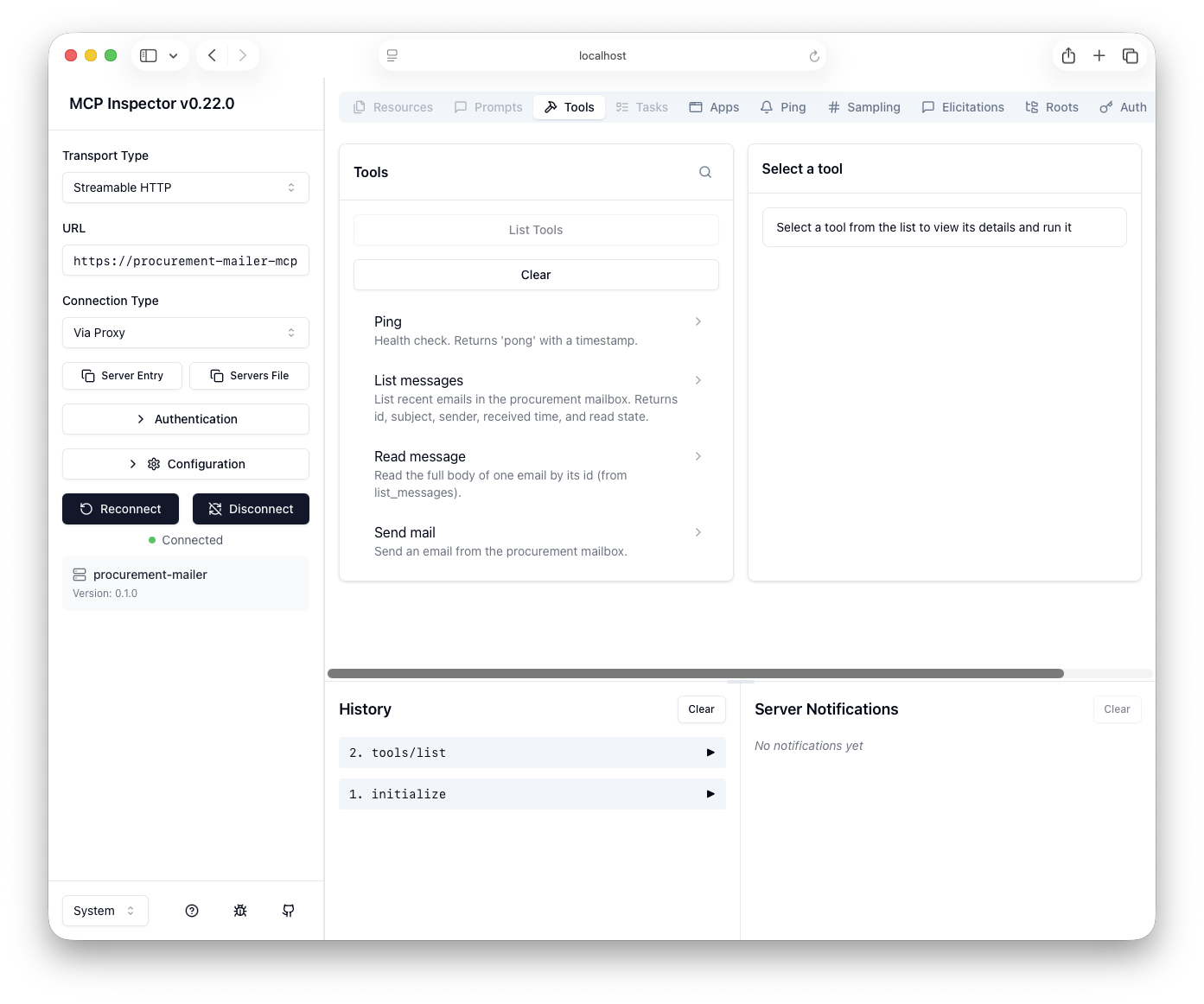
procurement-mailer v0.1.0, and List Tools showing all four methods — the deployed version is wired to the MCP endpoint.ping returns pong @ <timestamp>, and list_messages returns items from the scoped mailbox. If all three pass against the deployed route, the full chain — destination, bindings, Entra auth, Graph, mailbox scope — is sound.Troubleshooting
| Symptom | Cause | Fix |
|---|---|---|
| SAP_IPA_13366 | SBPA → Joule auth failure at capability deploy time. | Re-check destination auth, re-consent the connection, redeploy the capability. |
| Capability not callable | Missing per-member deployment in the shared Control Tower env. | Deploy the capability explicitly for each member; confirm it reads Deployed. |
| Tools missing / empty VCAP | Service bindings not injected — app was restarted, not restaged. | Re-bind all three services and cf restage (not restart). |
| 404 on every call | Destination URL ends in /mcp, producing /mcp/mcp. | Set the destination URL to the bare route with no trailing /mcp. |
| 403 on mailbox | Delegated (not Application) permission, or access policy not yet propagated. | Confirm Application permissions + admin consent; run Test-ApplicationAccessPolicy; allow ~30 min. |
| curl "works" but Joule fails | Raw curl doesn't complete the Streamable HTTP handshake. | Validate with the MCP Inspector (npx @modelcontextprotocol/inspector), not curl. |
| cf deploy binary error | arm64 / MultiApps plugin architecture mismatch on Apple Silicon. | Download multiapps-plugin.osxarm64 from the plugin's GitHub releases and cf install-plugin it manually (Stage 01 has the commands). |
end of runbook · setup order Graph → MCP → Joule · back to top ↑